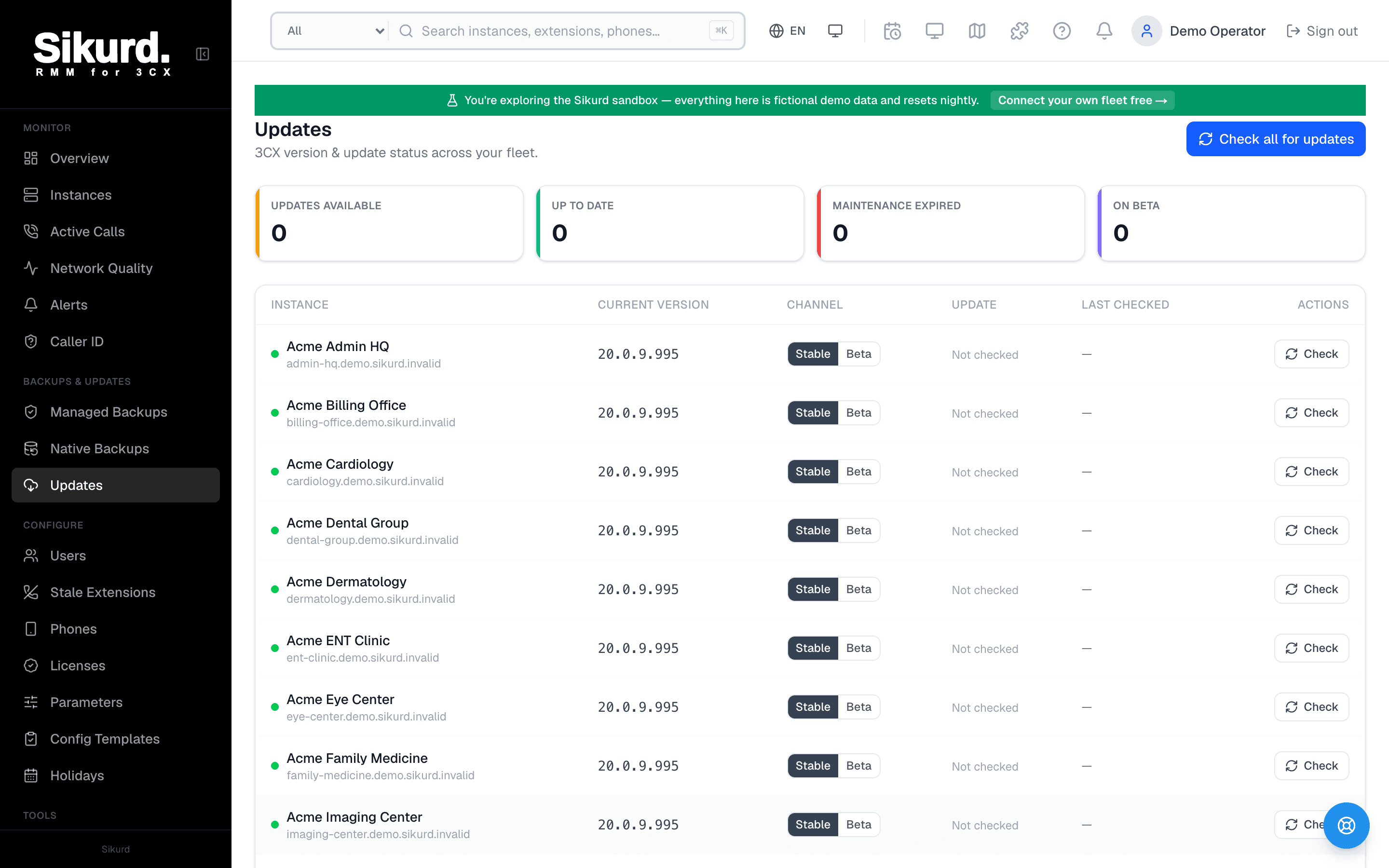
Updates
3CX version & update status across your fleet.
4
12
1
1
| Instance | Current version | Channel | Update | Last checked | Actions |
|---|---|---|---|---|---|
Cedar Valley Pediatrics cedarvalley.3cx.us | 20.0.5.873 | StableBeta | Maintenance expired | Jun 5, 2026, 11:42 AM | Check |
Northwind Cardiology northwind.3cx.us | 20.0.8.1121 | StableBeta | 2 available | Jun 5, 2026, 11:42 AM | Update Check |
Harbor ENT Associates harbor-ent.3cx.us | 20.0.8.1121 | StableBeta | 1 available | Jun 5, 2026, 11:42 AM | Update Check |
Lakeside Dental Group lakeside.3cx.us | 20.0.8.1121 | StableBeta | Scheduled · Tonight, 2:00 AM | Jun 5, 2026, 11:40 AM | Check |
Summit Family Practice summit.3cx.us | 20.0.8.1121 | StableBeta | Backing up… | Jun 5, 2026, 11:38 AM | Check |
Meridian Orthopedics meridian.3cx.us | 20.0.8.1121 | StableBeta | Installing… | Jun 5, 2026, 11:36 AM | Check |
Riverside Women's Health riverside.3cx.us | 20.0.8.1131 | StableBeta | Updated · Jun 5, 3:02 AM | Jun 5, 2026, 9:14 AM | Check |
Oakmont Dermatology oakmont.3cx.us | 20.0.8.1121 | StableBeta | Update failed | Jun 5, 2026, 8:20 AM | Check |
Pinnacle Eye Care pinnacle.3cx.us | 20.0.8.1131 | StableBeta | Up to date | Jun 5, 2026, 8:16 PM | Check |
Beacon Property Mgmt beacon.3cx.us | 20.0.8.1131 | StableBeta | Up to date | Jun 5, 2026, 8:16 PM | Check |
Ironwood Internal Medicine ironwood.3cx.us | 20.0.8.1135 | StableBeta | Up to date | Jun 5, 2026, 8:15 PM | Check |
Select instances with an available update and choose to update now or schedule a time. A fresh managed backup is taken before each update by default.
The two-sided risk of 3CX patching
Patch management on 3CX has a reputation for being either neglected or done dangerously, and both ends of that spectrum hurt MSPs.
Patch too late and you're carrying a known liability. 3CX is internet-facing by design — a public FQDN, a web client, SIP on the edge — which makes an out-of-date build an attractive target. The 2023 supply-chain incident put 3CX security squarely on every partner's radar, and the practical lesson stuck: a PBX that's months behind on releases is the one that ends up in an incident report. Late patching also generates quiet support drag — bugs that were fixed upstream keep generating tickets because the fix never landed on the customer's box.
Patch carelesslyand you trade a slow risk for a fast one. 3CX applies updates asynchronously and can restart services while it does — run that at 2 p.m. and you've dropped live calls for a customer who never agreed to a maintenance window. Worse, if a release interacts badly with that instance's config and you have no recent backup, your rollback plan is "rebuild and hope." Doing it by hand also means logging into every customer's console one at a time, which is exactly the work that doesn't get done consistently across a fleet of twenty or fifty PBXs.
The answer to both is the same shape: decide when each instance patches, make sure there's a restore point before it does, and run the whole thing from one place instead of N consoles. That's what scheduled, backup-protected updates give you.
The fleet view: know what's running before you touch anything
The starting point in Sikurd's Update Manager is a single screen that lists every connected 3CX instance with:
- Current 3CX version — what's actually running on each box right now.
- Pending updates — what 3CX reports as available from the last scan, with the individual update names so you can see exactly what would install.
- Channel — whether that instance is on the Stable or Beta update channel (more on this below).
- Maintenance status — 3CX blocks updates once maintenance/support lapses, so an expired instance is flagged and held out of the push, not silently skipped.
- Last checked — when the instance was last scanned, so you're never acting on stale data.
Summary tiles at the top roll the fleet up at a glance: how many instances have updates available, how many are up to date, how many have maintenance expired, and how many are on Beta. A "Check all for updates" action re-scans every instance so the view reflects reality before you commit to anything. This is the part that replaces the spreadsheet — instead of remembering which customer is on which build, you open one page and the whole estate is in front of you, with the instances that need attention sorted to the top.
How a scheduled, backup-protected update works
Once you can see the fleet, the workflow is: scan, select, choose timing, and let the worker do the rest safely. Here's each step and what's actually happening underneath.
1. Scan and select
You scan (or re-scan) the instances you care about, then open the push dialog. You pick which instances to include and — per instance — which of the pending updates to install. You're choosing against a live read of what 3CX currently reports as out of date, not a guess.
2. Choose: update now, or schedule
Two timing options: update immediately, or schedule for a specific date and time. Scheduling is the headline for production fleets — you queue the work for tonight's maintenance window and walk away. Because each selected instance becomes its own job with its own scheduled time, you can stagger a rollout: lab and low-risk customers first, the rest on their individual windows. A scheduled job can be cancelled any time before it starts.
3. Backup-first (on by default)
The "take a fresh managed backup before each update" option is checked by default, and it's the single most important safety control here. When the job runs, the worker:
- Looks for a managed backup of that instance taken in the last hour. A recent backup is already a valid restore point, so it's reused — no redundant capture.
- If there isn't a recent one, it triggers a fresh capture and waits for that backup to land in immutable storage before it touches the update.
- Only then does it move on to installing.
So by the time a single byte of the update is applied, you have a same-day restore point sitting in off-site storage. If the release misbehaves on that box, you're restoring — not rebuilding.
The one hard requirement: backup-first needs the instance enrolled in Sikurd's Verified / Managed Backups. If an instance isn't enrolled, Sikurd flags it right in the push dialog ("not enrolled — backup-first will fail"), and the job fails fast rather than installing unprotected. You can disable backup-first per push if you've created a restore point another way — but for production instances, leaving it on is the whole point. (For what "managed backup" really means and how Sikurd proves those backups actually restore, see Verified Backups.)
4. Re-validate, then install
Right before installing, the worker re-fetches the update list from 3CX and re-validates that your selected updates are still pending. This matters more than it sounds: time may have passed between scheduling and execution, and 3CX regenerates its install key on every fetch. Sikurd matches your selection against the fresh list and installs the current entries. If the updates turn out to be applied already — say 3CX picked them up on its own in the interim — the job is marked Completed with nothing to do, not failed. The goal was "that server is current," and it already is.
5. The status ladder
Every job moves through a status you can read at a glance on the fleet row:
- ScheduledQueued for its time. Shows the scheduled moment in your timezone, with a cancel option.
- Backing upThe worker is capturing (or waiting on) the fresh pre-update backup.
- InstallingThe backup is in place; the update has been handed to 3CX.
- Completed3CX accepted the install. The new version appears on the next scan.
- FailedSomething stopped the job — with the reason attached, so you know whether to re-push or fix the underlying issue first.
One job per instance, one clear state per job. A fleet-wide rollout becomes legible instead of a pile of console tabs.
What "Completed" really means (and why that's honest)
It's worth being precise, because over-claiming here would be misleading. "Completed" means 3CX accepted the install request. 3CX applies updates asynchronously and may restart services as part of doing so — so the moment a job reads Completed is the moment the command was accepted, not a guarantee that every service is already back up on the new build. The authoritative confirmation is the version number on the next scan: once that instance reports the new release, you know it's running it. Sikurd surfaces the accepted state immediately and the new version on the following scan, so you get fast feedback without a false promise.
Stable vs. Beta: a channel control per instance
Not every box should see the same releases. Sikurd exposes a per-instance channel filter in the fleet view:
- Stable — production 3CX releases. Where the overwhelming majority of customer instances belong.
- Beta — pre-release builds, for the instances where you actually want them: a lab PBX, an internal box, or a customer who has explicitly opted into early builds.
The channel is set per instance, so a single beta-testing server doesn't drag pre-release builds in front of your whole fleet. It's a small control with an outsized payoff: you can run one or two canary instances on Beta to catch problems early, while every production customer stays on Stable until you're satisfied a release is safe.
Why this beats per-console patching
The build-it-yourself alternative is to remember each customer's version, log into each console on their schedule, take a backup by hand (if you remember), apply the update, and hope nothing restarts at a bad time. That works for one or two PBXs. Across a real fleet it produces the exact failure mode the industry keeps relearning: the instances that fall behind are the ones nobody got around to, and the update that breaks something is the one with no recent backup.
Scheduled, backup-protected updates close that gap by default. You see the whole fleet's version state in one place, you patch on the windows your customers agreed to, and a fresh restore point is taken before each install unless you opt out. The work that "didn't get done consistently" becomes a few minutes on one screen.
Adjacent reading
- Verified Backups — what the pre-update backup actually is, and how Sikurd proves your 3CX backups restore.
- Best tools for managing multiple 3CX servers — the broader fleet-management picture.
- How to monitor 3CX trunk health — catching the failures that updates and config drift can introduce.